Skip to content

Google Chrome extensions are small software programs that enhance and customize your browsing experience on the Google Chrome browser. These extensions add specific functionality or features to your browser, allowing you to tailor Chrome to meet your personal or professional needs.
They are built using web technologies such as HTML, JavaScript, and CSS and can modify browser behavior, interact with web pages, or add entirely new capabilities — all without having to leave the page you’re on.
Key Features of Chrome Extensions
-
Customization: Extensions let you change how Chrome behaves. For example, you can block ads, manage passwords, or change the appearance of websites.
-
Productivity Boost: Many extensions are designed to help users stay focused, manage tasks, or streamline workflows. Tools like Grammarly, Todoist, and Notion Web Clipper are common productivity extensions.
-
Easy Installation: Chrome extensions are installed directly from the Chrome Web Store. Most are free and only take seconds to add.
-
Real-Time Utility: Extensions operate while you browse — offering translations, grammar corrections, screenshots, video downloads, SEO analysis, and more.
-
Wide Range of Categories:
-
Productivity (e.g., time trackers, task managers)
-
Accessibility (e.g., screen readers, text-to-speech tools)
-
Entertainment (e.g., video speed controllers)
-
Developer tools (e.g., code formatters, testing aids)
-
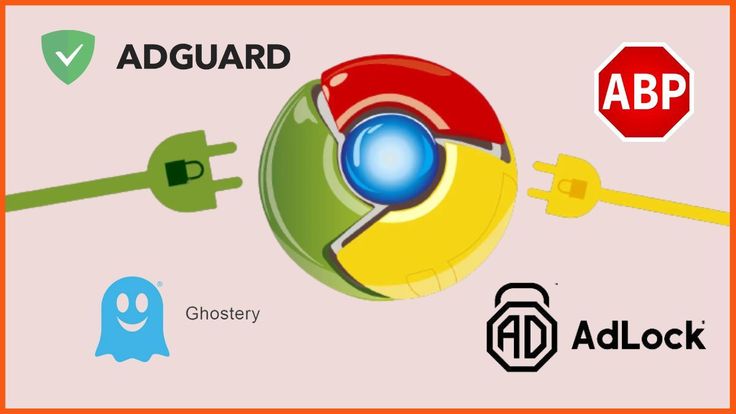
Security (e.g., VPNs, ad blockers, anti-tracking tools)
-
How to Install a Chrome Extension
-
Open Google Chrome.
-
Visit the Chrome Web Store.
-
Search for the extension you want.
-
Click on the extension’s name to open its details page.
-
Click the blue “Add to Chrome” button.
-
Confirm by selecting “Add Extension” when prompted.
Once installed, an icon for the extension appears in the toolbar (top-right of Chrome), and it’s ready to use.
Examples of Popular Chrome Extensions
-
Grammarly – Checks grammar and spelling in real-time as you write.
-
Adblock Plus – Blocks intrusive ads and speeds up page loading.
-
Honey – Finds and applies coupon codes automatically when you shop online.
-
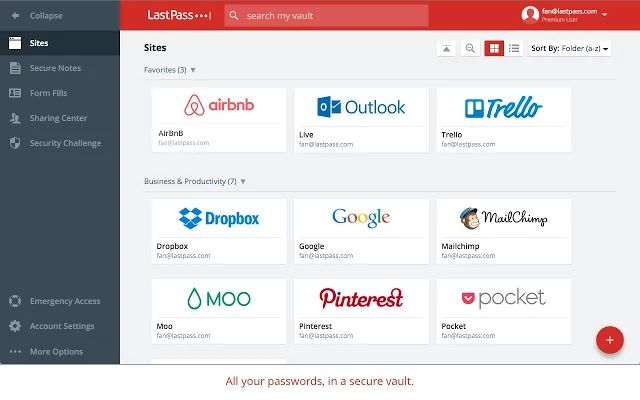
LastPass – Manages and secures your passwords.
-
ChatGPT for Chrome – Brings AI-based assistance to any web page.
Managing Extensions
You can manage all your extensions by:
-
Clicking the three-dot menu in Chrome (top-right corner).
-
Navigating to More Tools > Extensions.
From there, you can:
-
Enable/disable extensions
-
Remove unwanted ones
-
Adjust permissions
-
Update them manually
Conclusion
Chrome extensions are powerful tools that can make your online experience smoother, safer, and more productive. With thousands of options in the Chrome Web Store, you can find an extension for almost any need — from writing and research to security and entertainment.
Whether you’re a casual user or a professional, adding the right extensions to Chrome can save you time and significantly enhance your browsing experience.