Skip to content

In today’s online world, advertisements are everywhere — popping up before videos, cluttering news articles, interrupting music streams, and even slowing down website load times. While some ads are helpful, many are intrusive, annoying, and sometimes even malicious. For users who crave a cleaner, faster, and more secure browsing experience, Adblock Plus is one of the most popular and effective tools available.
The Adblock Plus Chrome Extension empowers users to take control of their browsing environment by blocking unwanted ads, pop-ups, trackers, and more. Whether you’re a casual internet user or a privacy-conscious professional, this free browser extension can dramatically improve the way you interact with the web.
In this blog post, we’ll take a comprehensive look at what Adblock Plus is, how to install and use it on Chrome, what features it offers, and how you can tailor it to your specific browsing needs. Let’s get started.
What Is AdBlock Plus?
Adblock Plus (ABP) is a free and open-source browser extension designed to block advertisements and website trackers. It was developed by Eyeo GmbH and is available for all major browsers, including Google Chrome, Mozilla Firefox, Microsoft Edge, Safari, and Opera.
Unlike traditional ad blockers, Adblock Plus not only blocks standard display ads but also filters out:
-
Pop-ups and pop-unders
-
Video ads on platforms like YouTube
-
Flash and banner ads
-
Tracking cookies and scripts
-
Malicious or deceptive ads
Adblock Plus uses a set of customizable filter lists that determine which content to block or allow. Users can also whitelist specific sites or channels, ensuring that non-intrusive ads can still support their favorite creators.
Why Use the AdBlock Plus Chrome Extension?
Here are some of the top benefits of using AdBlock Plus on Chrome:
1. Cleaner Browsing Experience
Webpages load without the clutter of distracting banners, autoplay videos, or pop-up ads, allowing you to focus on the content you actually want to see.
2. Faster Page Loading
By blocking resource-heavy ads and scripts, Adblock Plus can significantly improve page loading times and reduce bandwidth consumption.
3. Improved Privacy
The extension blocks third-party tracking scripts and cookies, helping protect your personal data and online behavior from advertisers and data brokers.
4. Enhanced Security
Adblock Plus helps defend against malvertising — ads that carry malware or phishing schemes — by blocking known threats.
5. Customization and Control
You decide what to block or allow. ABP lets you create your own filter rules, whitelist sites you want to support, and turn blocking on or off at any time.
How to Install AdBlock Plus on Google Chrome
Installing the Adblock Plus extension on Chrome is quick and straightforward. Here’s a step-by-step guide:
Step 1: Visit the Chrome Web Store
Go to the official Chrome Web Store at https://chrome.google.com/webstore
Step 2: Search for “Adblock Plus”
In the search bar, type “Adblock Plus” and press Enter. Look for the extension titled “Adblock Plus – free ad blocker” by eyeo GmbH.
Step 3: Add to Chrome
Click on the extension and then click the blue “Add to Chrome” button.
Step 4: Confirm Installation
A pop-up will appear asking for confirmation. Click “Add Extension”.
Once added, the Adblock Plus icon (a red stop sign with “ABP” written inside) will appear in your browser toolbar.
Using the AdBlock Plus Extension
Once installed, using Adblock Plus is incredibly intuitive. Here’s how you can make the most out of its features:
1. Automatic Ad Blocking
Adblock Plus starts working immediately after installation, using default filter lists to block most ads on the websites you visit. You’ll notice cleaner web pages right away.
2. View Blocking Activity
Click the ABP icon in the toolbar to see:
-
How many ads were blocked on the current page
-
Total ads blocked overall
-
The ability to disable or enable blocking on the site you’re visiting
3. Whitelist Trusted Sites
Some websites rely on ad revenue to operate. If you want to support them, you can whitelist them by:
-
Clicking the ABP icon
-
Toggling off ad blocking for the site
-
Refreshing the page to allow ads to display
This is a great way to balance a clean browsing experience while still supporting content creators and publishers you value.
4. Adjust Filter Settings
Go to the Adblock Plus settings page by clicking the gear icon in the extension menu. From here, you can:
-
Add or remove filter lists
-
Enable or disable acceptable ads
-
Create your own blocking rules
-
Manage whitelisted domains
5. Block Specific Elements
ABP allows you to block specific elements on a webpage by right-clicking them and selecting “Block element”. This is useful for removing annoying pop-ups, comment sections, or auto-playing videos.
Download Options and Compatibility
Where to Download
The safest place to download Adblock Plus for Chrome is the official Chrome Web Store:
👉 Adblock Plus – Chrome Web Store
Alternatively, you can download it from the official website:
👉 https://adblockplus.org
Browser Compatibility
Adblock Plus is compatible with:
-
Google Chrome
-
Mozilla Firefox
-
Microsoft Edge (Chromium version)
-
Safari
-
Opera
-
Android (via ABP browser)
-
iOS (via ABP browser)
Adblock Plus vs. Other Ad Blockers
While there are several ad blockers available, Adblock Plus stands out due to:
-
Its transparency and open-source nature
-
Widespread community support
-
User-friendly interface
-
“Acceptable Ads” initiative that supports ethical advertising
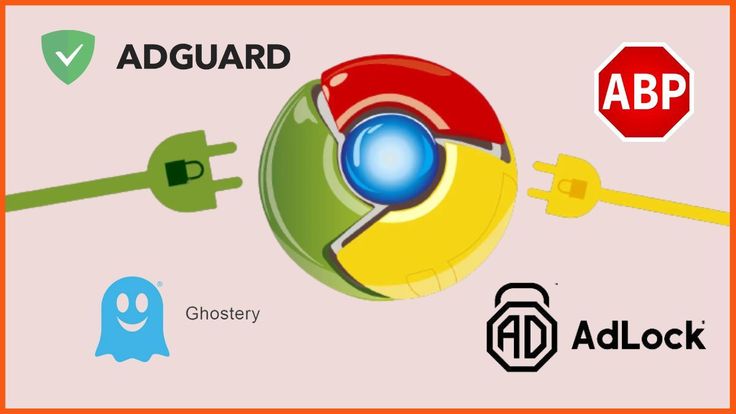
It competes with tools like uBlock Origin, AdGuard, and Ghostery, each with its strengths. However, for everyday users looking for ease of use and robust protection, Adblock Plus remains a top choice.
Final Thoughts
In an era of intrusive advertising, slow-loading pages, and rising privacy concerns, the Adblock Plus Chrome Extension offers a breath of fresh air. It restores control to the user by blocking unwanted content, protecting personal data, and enhancing overall browsing speed and comfort.
Whether you’re surfing the web casually or using the internet for work, installing Adblock Plus is a simple step toward a safer, faster, and more enjoyable online experience.
If you haven’t tried it yet, head over to the Chrome Web Store, install Adblock Plus, and enjoy the freedom of an ad-free internet today.